






Looking for an efficient way to set up and manage your Colorlight Media Players for your digital signage needs?
Colorlight Media Players offer powerful features that enhance content delivery, ensuring your displays are both engaging and effective.
In this quick start guide, you’ll discover how to quickly configure and optimize your Colorlight Media Players. Best of all, the process is straightforward and doesn’t require extensive technical expertise.
In This Article
- What is a Colorlight Media Player?
- Hardware Connection and Interface
- WIFI and Antenna Configuration
- Obtain the IP address
- Download Software
- Managing with PlayerMaster
- Routine Program Creation and Publishing
- Create programs
- Edit programs
- Preview Display effect & Publish Programs.
- Manage Program Files
- Conclusion
What is a Colorlight Media Player?
Most of Colorlight’s media players are cloud networking devices designed for high-efficiency content delivery. These players support hardware decoding and high-definition output, facilitating seamless media distribution. Built on Colorlight’s robust cloud service platform, they enable efficient device monitoring, program creation, scheduling, centralized publishing, and multi-level management.
As a leading provider of LED display technology, Colorlight offers a variety of media player models to cater to different requirements. Here’s a quick overview of some common options:
- A100
- A200
- A35
- A2K
- A4K
- C3Pro
- and lots more
Hardware Connection and Interface
Taking the Colorlight A200 LED media player as a model, here’s an insight into its interface and a basic hardware connection with LED screen:
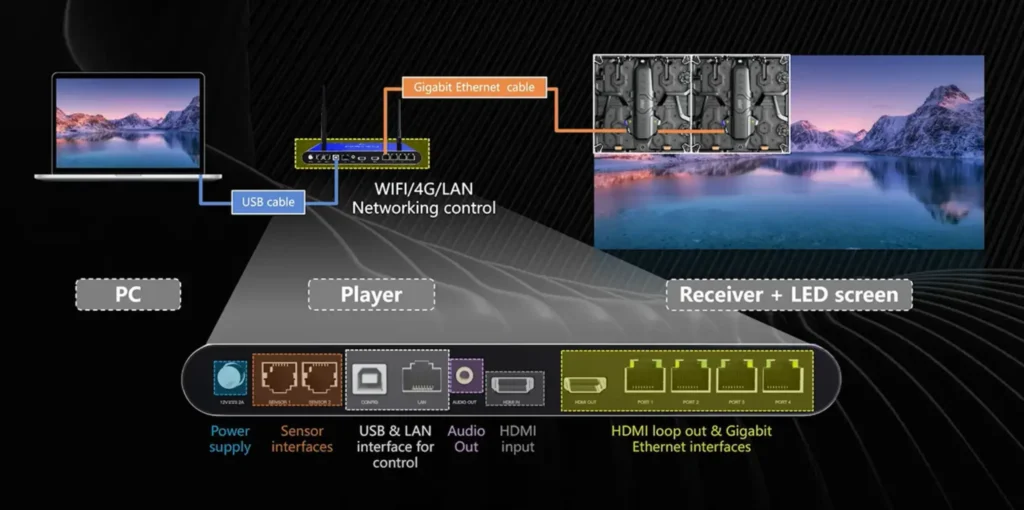
As shown as the image, the media players supports USB to be controlled by a control PC, or supports WIFI/4F/LAN networking control. The main ports includes:
- Power Connector: The player operates at 12V DC with a spiral locking design for enhanced stability.
- Sensor Interfaces: Two RJ11 ports for sensor connections that monitor screen environmental conditions.
- USB Port: For direct connectivity to computers via USB cable, facilitating control.
- Ethernet Port: A 100Mbps port enables control over a Local Area Network and access to cloud services.
- Audio Outputs: A 3.5mm audio output for stereo sound.
- HDMI Input: HDMI video input port which is used to input the video signal source when the player is in sync working mode
- HDMI loop port and Ethernet port: which is used to output the HDMI signal and Ethernet signal, according to the number of pixels on your screen, there are different numbers of Ethernet port media player for your choice. .
Please note that other models may have different interface ports depending on the functions they can offer.
WIFI and Antenna Configuration
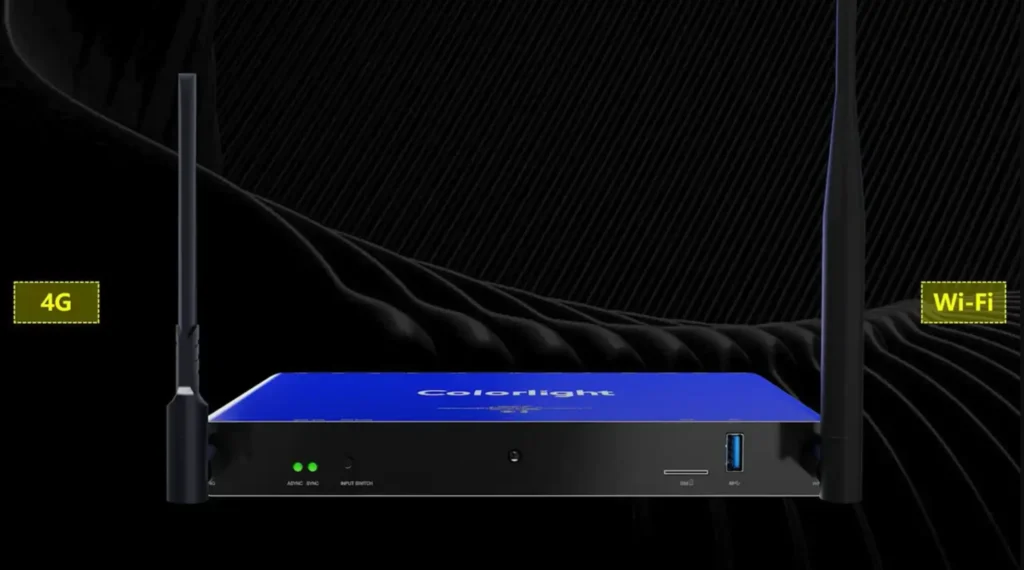
As mentioned above, the Colorlight media player supports wifi and a 4G connection. The WiFi antenna and 4G antenna are located at the two ends of the player. Note that the WiFi antenna is cylindrical, and the 4G antenna is flat, so they should not be mixed up.
Obtain the IP address
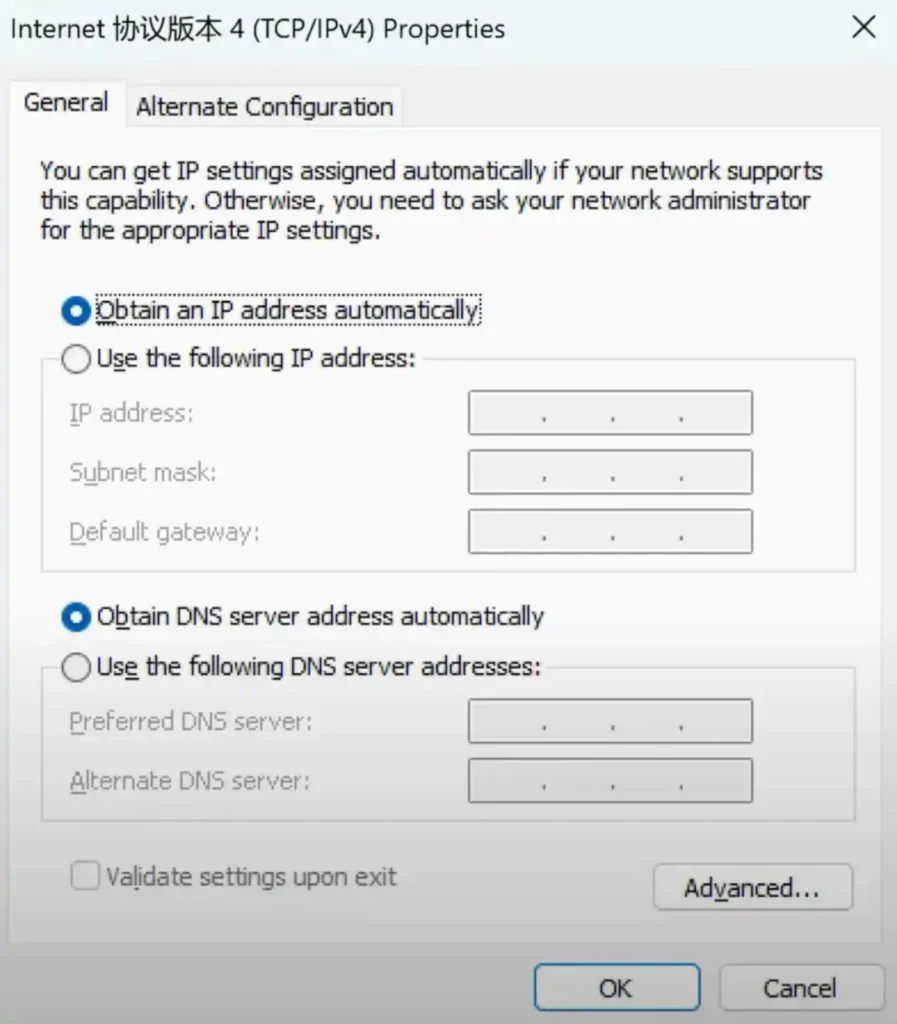
After you have set up the hardware connection for the media player, next we need to assign a IP to it.
Upon receiving a new media player, use the USB or LAN ports for the initial computer connection. It should be noted that if the Ethernet cable is connected to directly the player, the computer’s IP should be set to obtained automatically mode.
Download Software
Once the media player obtains an IP address, we need to prepare the LED control software. For Colorlight media players, the software is available as a PC client, Playermaster, and as a mobile application, LEDAssistant, which can be downloaded from the Colorlight website.
Managing with PlayerMaster
Here we use PlayerMaster as a test.
To use Playermaster, connect the media player to a computer through a USB or LAN port. Then, open the Playermaster software. Here is the main interface for your reivew.
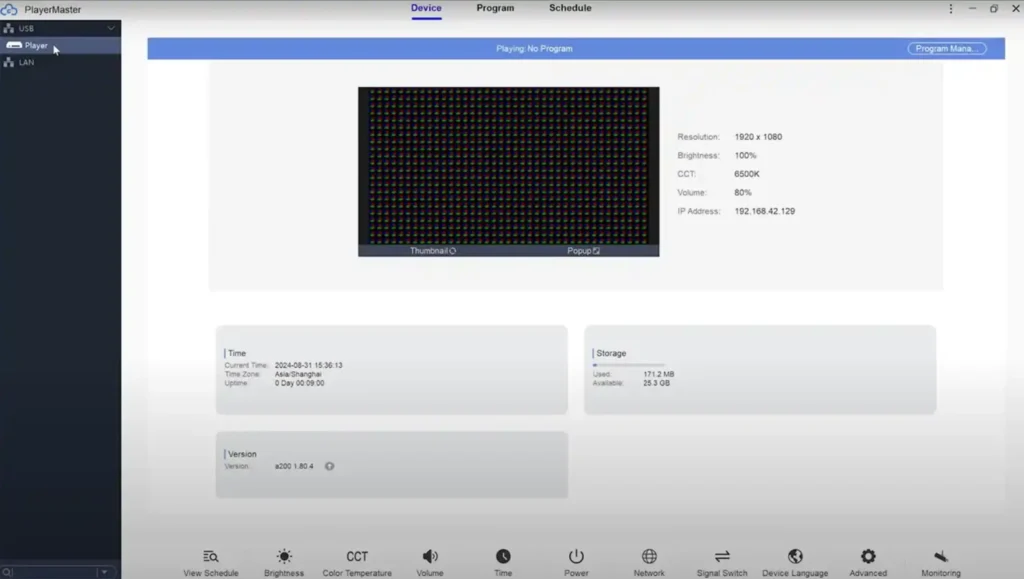
As shown in the image, there are 3 tab interfaces with “Device”, “Program”, and “Schedule”.
- Device: used for viewing terminal information as well as manage and control terminals
- Program: used for managing programs, such as adding, editing, publishing, exporting, and deleting programs.
- Schedule: used for managing schedules, such as adding, editing, publishing, exporting, and deleting schedules.
In the interface of “Device”, you can see that there is various information display such as screen resolution, brightness, CCT, column, IP address, system current time/Time zone/Uptime, system storage status used and available, and version information.
On the left side, there is a terminal tree, you can see the media player in the same local area network as your computer in the terminal tree. Right-click the media player then it will display a list of operation menus: “Publish Program”, “Publish Program Schedule”, “Publish Command Schedule”, “Delete Program Schedule”, “Delete Command Schedule”, “Publish Detail”, and “Rename”. You can click the corresponding menu to progress the associated task.
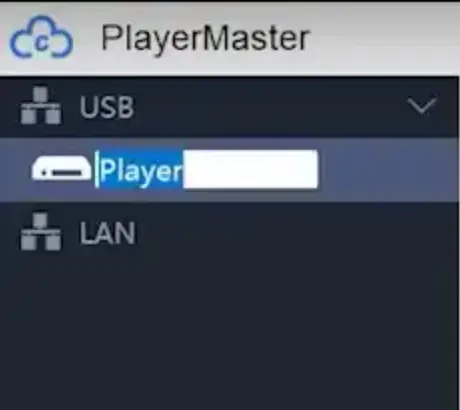
Rename media player
Right-click media player, click the “Rename” operation menu, then set a new name.
View Schedules
Access the bottom menu to click “View Schedule”.
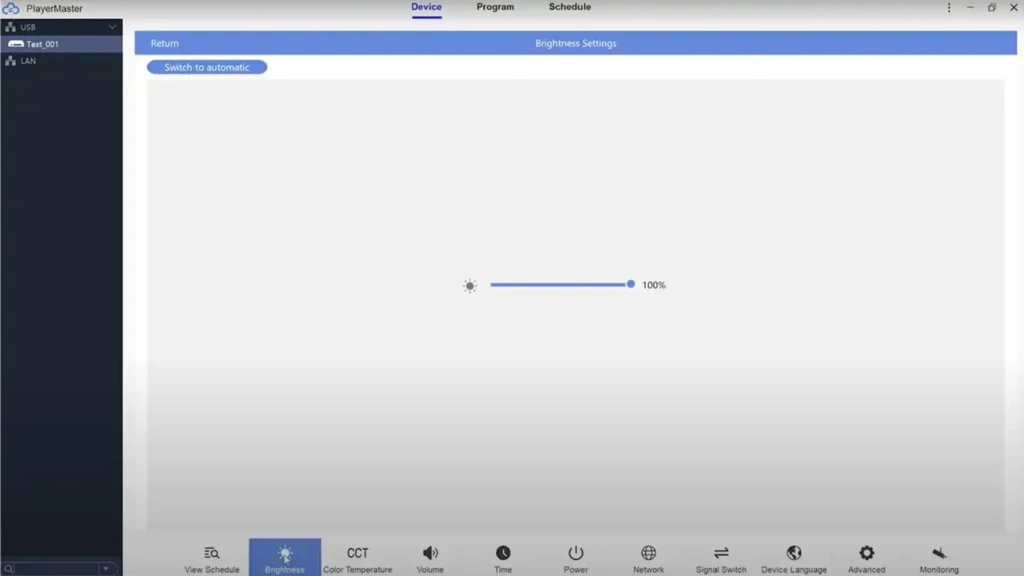
Adjust Brightness
Access the bottom menu to click “Brightness”.
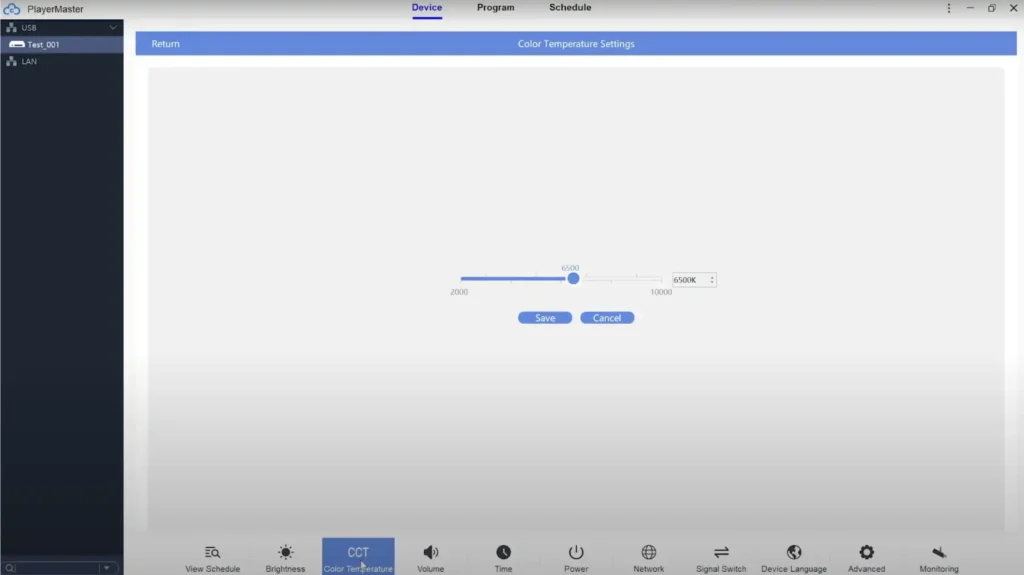
Adjust Color Temperature
Access the bottom menu to click “Color Temperature”.
Set control way
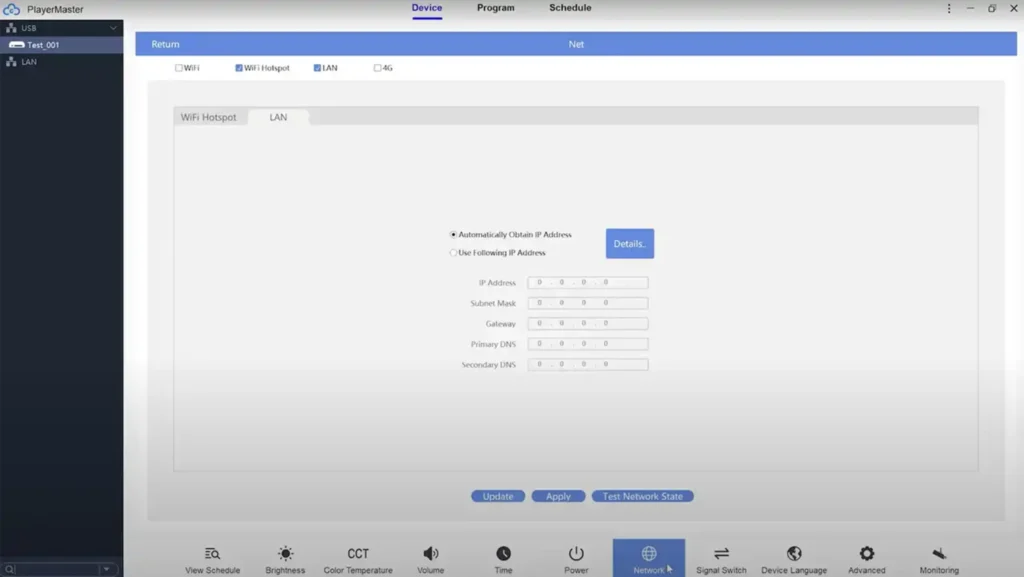
In the lower toolbar of the Playermaster software, you can click on the Network button, where you can choose to use Wi-Fi, Wi-Fi hotspot, LAN, or 4G, to allow your media player to be controlled wirelessly and publish programs.
How to enable Cloud Control
If you want to use cloud control, first, open the software setting in the dropdown list by clicking the upper-right menu.
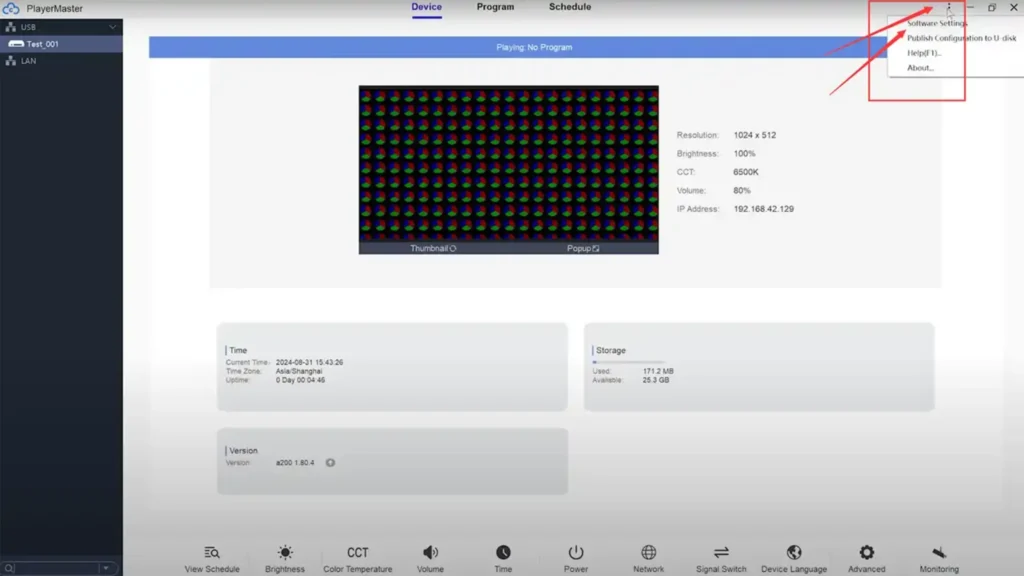
Next, switch Playermaster to cloud mode. As shown in the following image, there are two modes: LAN mode and Cloud Mode. If it is LAN mode, then switch to Cloud Mode.
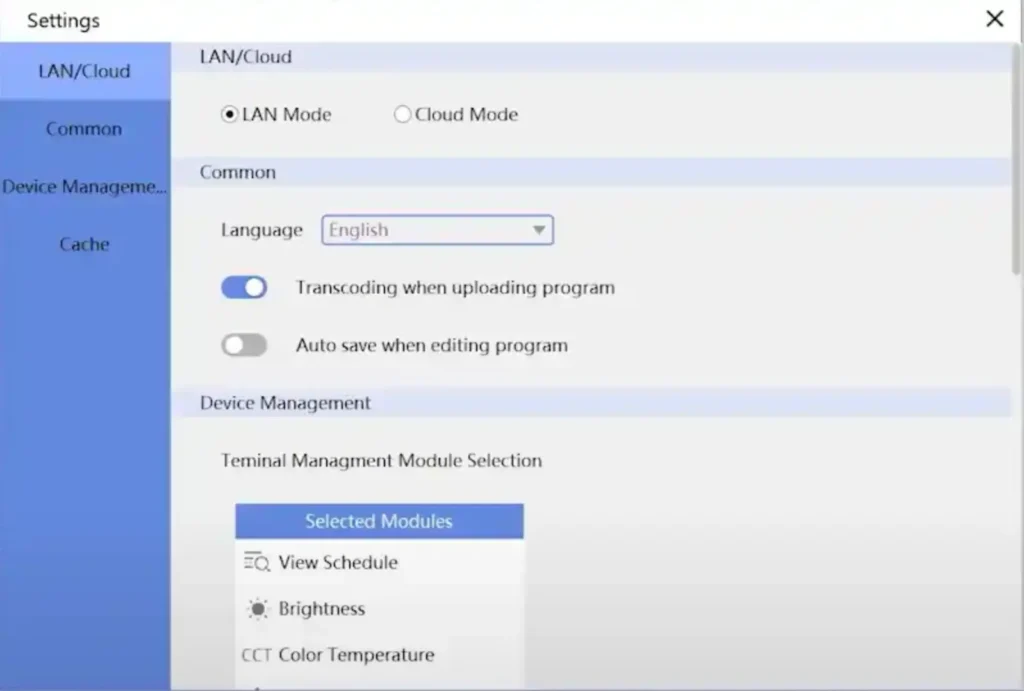
Next, switch Playermaster to cloud mode, then log in to your cloud account and drag and drop your connected devices onto the cloud so that the cloud platform is ready to use!
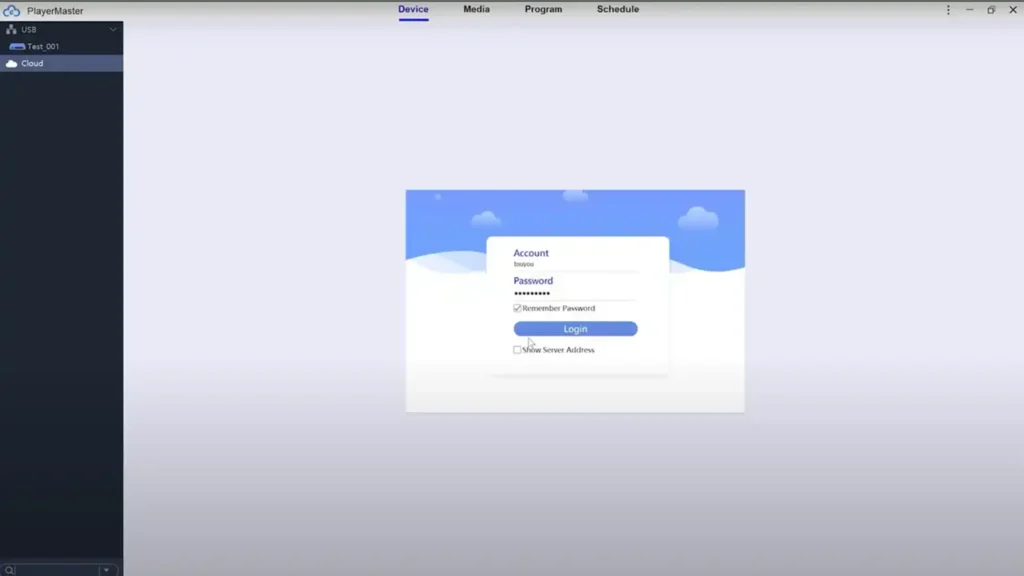
Similarly, you can click the bottom button to progress the corresponding function such as adjust volume, set time (Modify time and timezone), power management (Restart, Sleep, Wakeup), set language, monitor status, etc.
Routine Program Creation and Publishing
For creating and editing programs, first, we need to specify the program publishing mode, go to Software Settings, and select between LAN Mode or Cloud Mode.
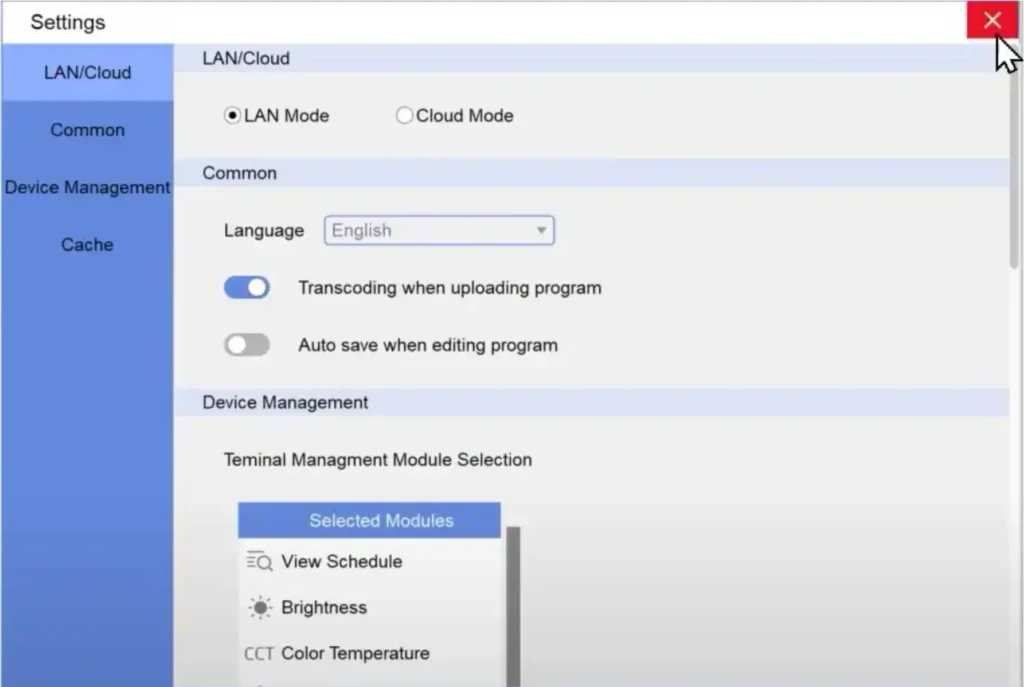
Here we take LAN Mode as an example. Right-click LAN in the upper-left corner and select Refresh. After that, The blue icons under LAN indicate the normal connection of meida players. Note that when the icons are gray with an X attached, it means the connection failed, please check your network connection.
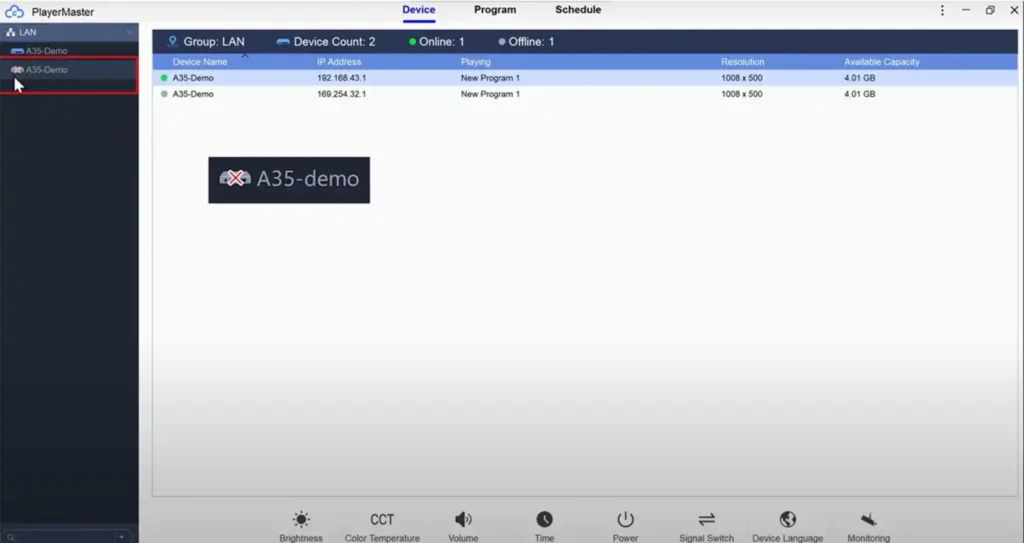
Once the connection is verified, next we proceed to create programs.
Create programs
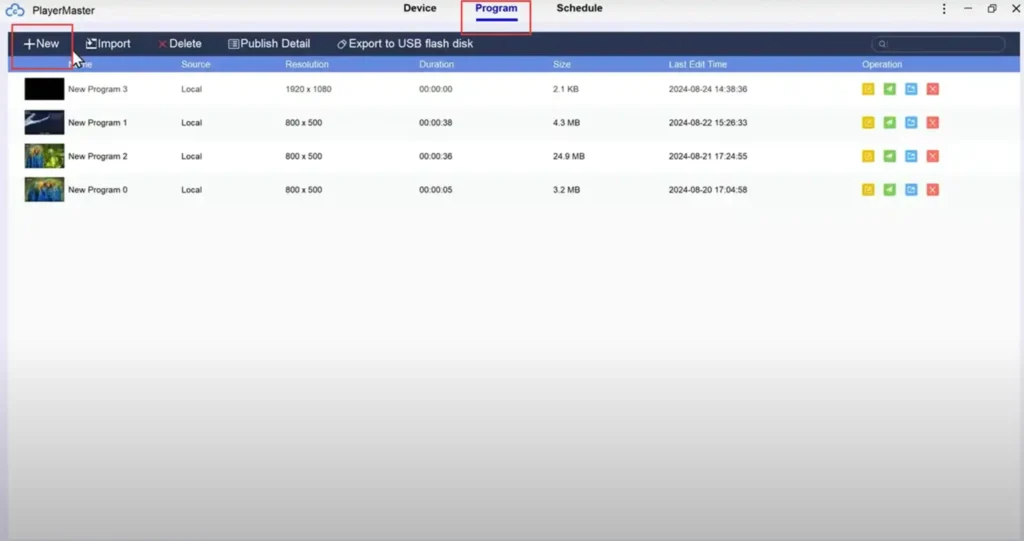
Select the “Program” tab and click on “New“.
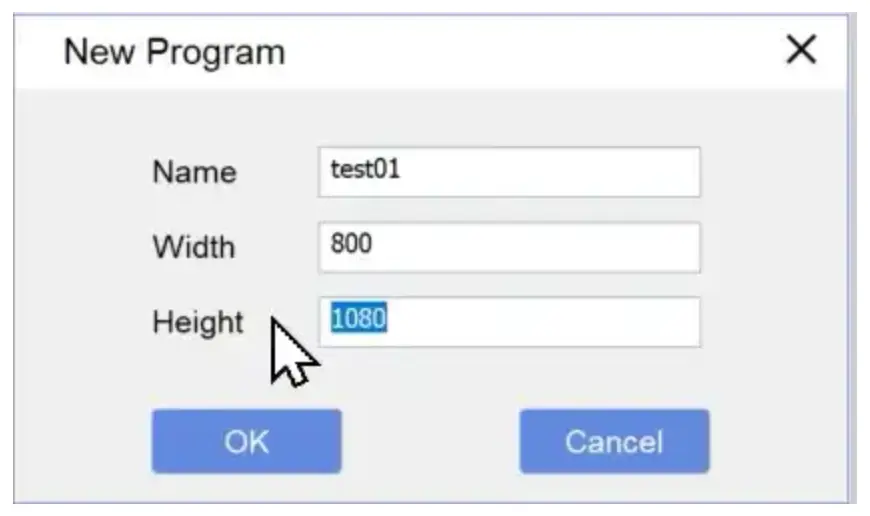
A new pop-up interface will be displayed to let you enter a program name in the field and set the program width and height according to the screen size. After you have entered the correct value, just click button “OK”
Edit programs
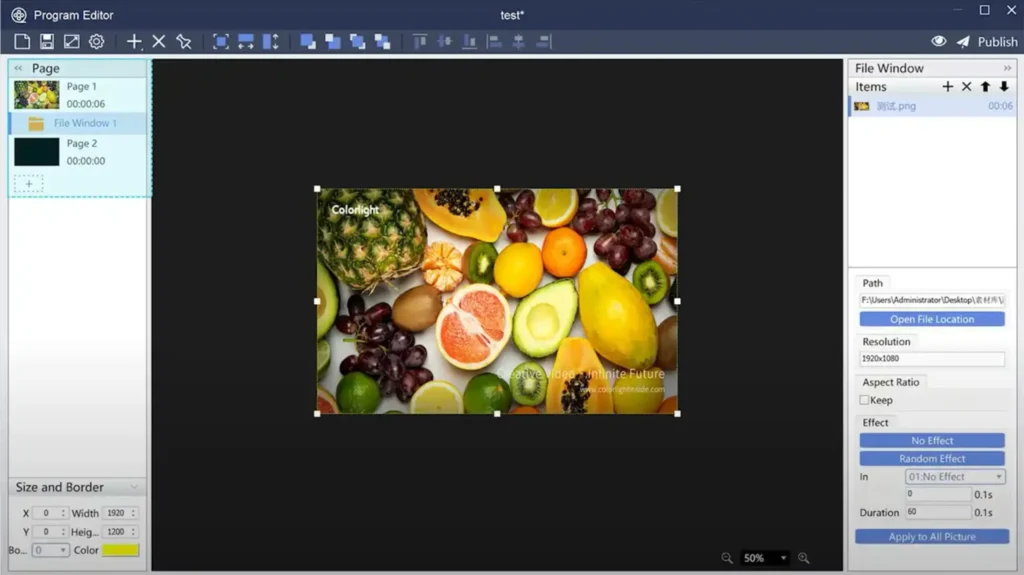
Next, you will reach the Program Editor interface, which consists of four main sections. The toolbar allows you to add, modify, and remove program windows, letting you tailor the program content to your preferences. In the upper-right corner, you’ll find the Preview and Publish buttons. On the left side, the panel displays the program page area, showing the program structure, including program pages and windows.
How to play the programs you create?
A program consists of multiple pages, with each page featuring one or more program windows. The program file plays in the sequence of the program pages, and all program windows on each page are displayed simultaneously. Within each program window, the materials are played in a sequential order.
Program Windown Creation
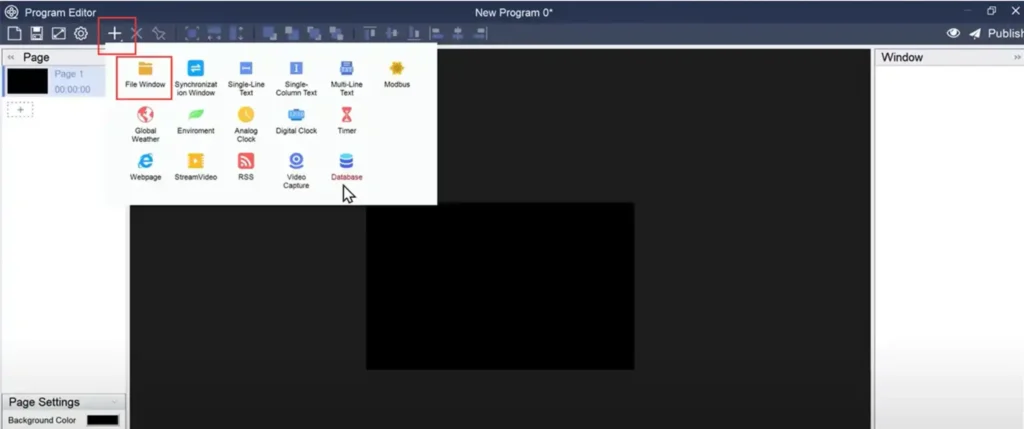
Click the “+” icon to add the desired type of program window from the available options. For example, to add a picture file, select “+” and choose “File Window“, then specify the image you wish to display.
You can reposition the program window by dragging it, and adjust its size by dragging its corners. Alternatively, you can enter values in the lower-left panel to quickly adjust the window’s coordinates and dimensions, which is efficient for editing multiple windows.
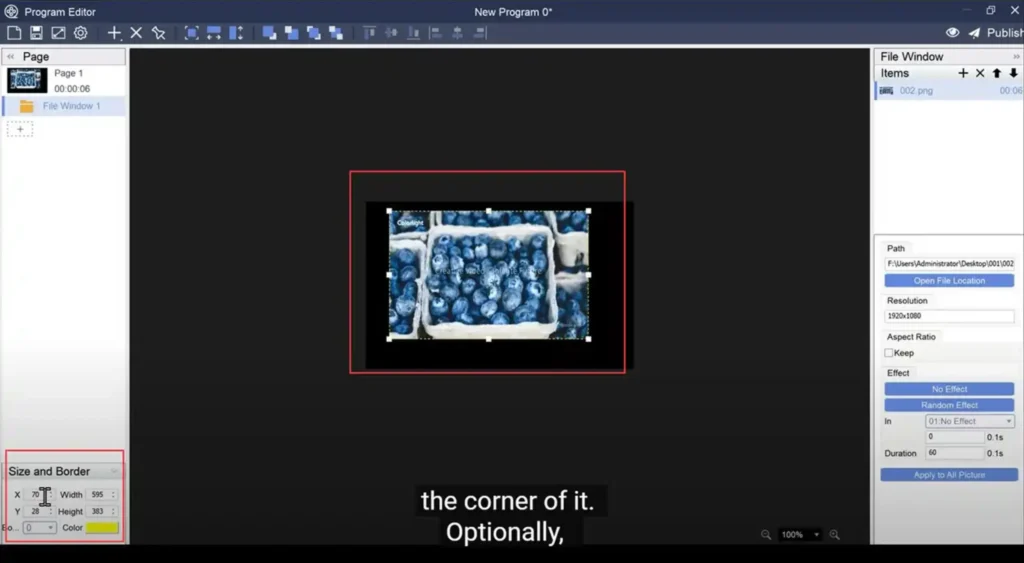
As you can see from the above image, in the lower-left panel, you can set the border width of the program using the drop-down menu and pick a border color using the color picker.
To apply a random entrance effect to the materials within the program window, select “Random Effect” in the Effect panel on the right, or customize the effect from the drop-down menu.
Program Page Creation
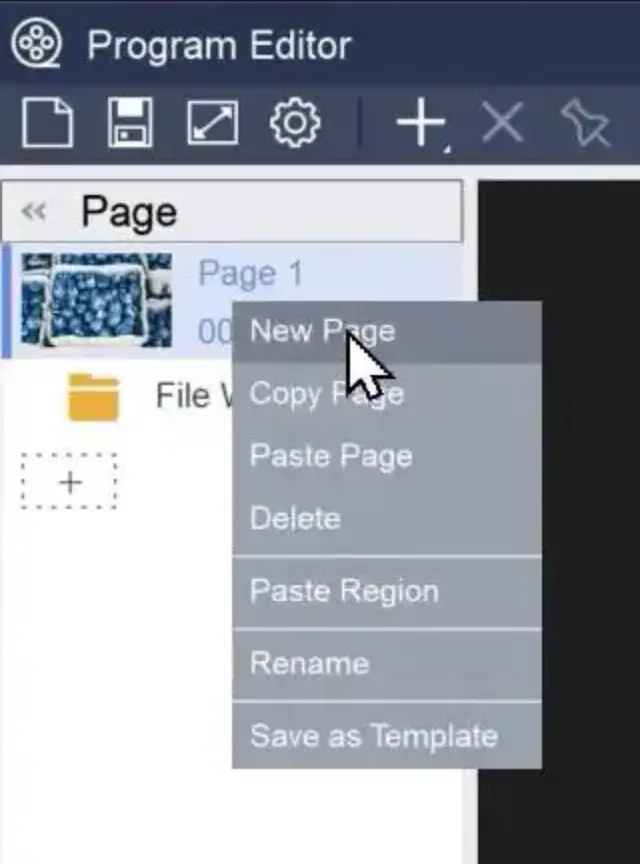
To add a new program page, right-click on an existing program page and choose “New Page” from the pop-up context menu.
Preview Display effect & Publish Programs.
After we have created the program, next we can click on “Preview” in the topper-right panel to check the display effect.
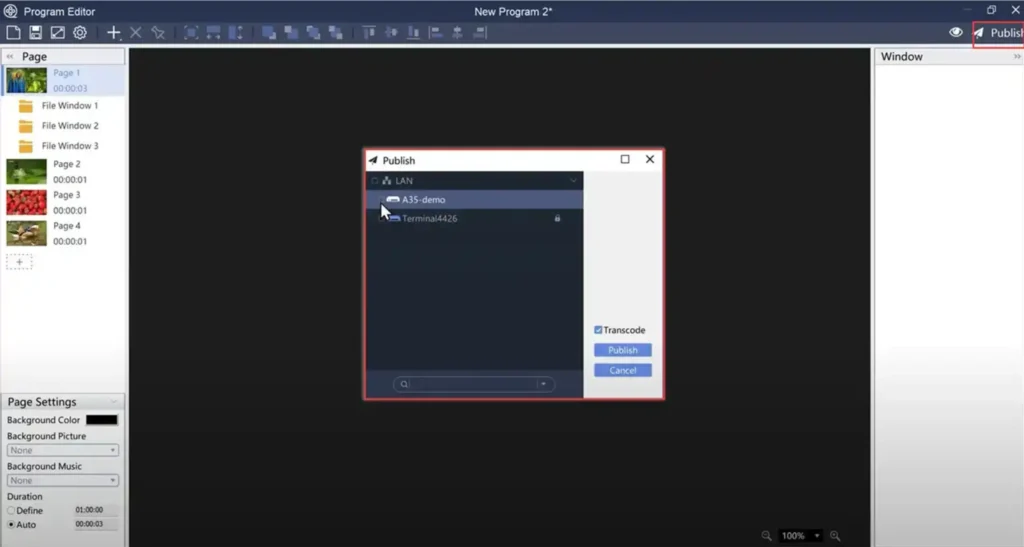
Next, select “Publish” from the toolbar. Choose the devices you wish to publish the programs to, then click on “Publish.” A progress bar will appear, showing the download status of the program file.
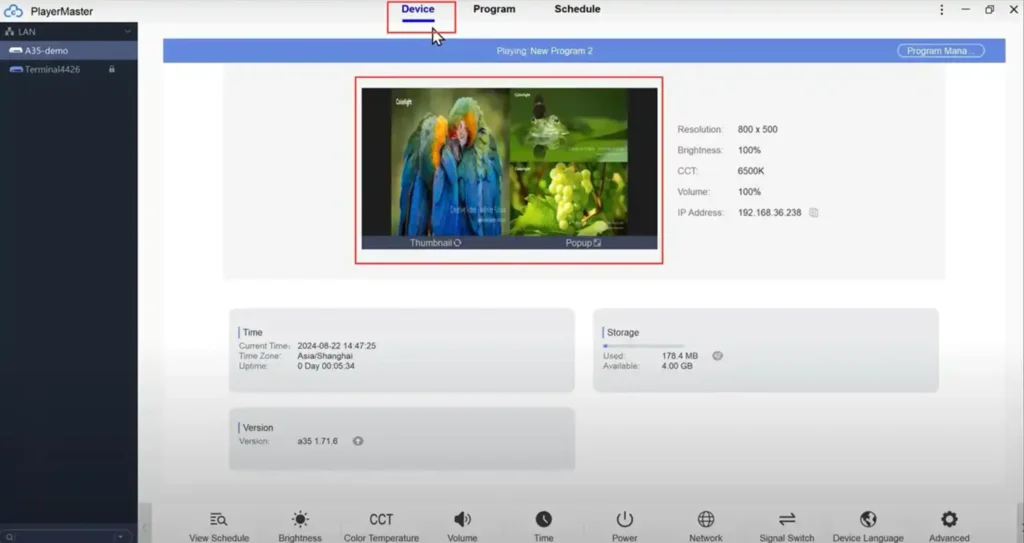
To ensure that the screens are displaying the program content correctly, you can retrieve a screenshot. Here’s how: Select the Device tab, double-click on the screenshot, and it will automatically refresh in PlayerMaster. You can then verify the display effect using the screenshot.
Manage Program Files
Next, I will explain how to manage the program files that have been downloaded to your local player. Start by selecting the Device tab and click on “Program Management“.
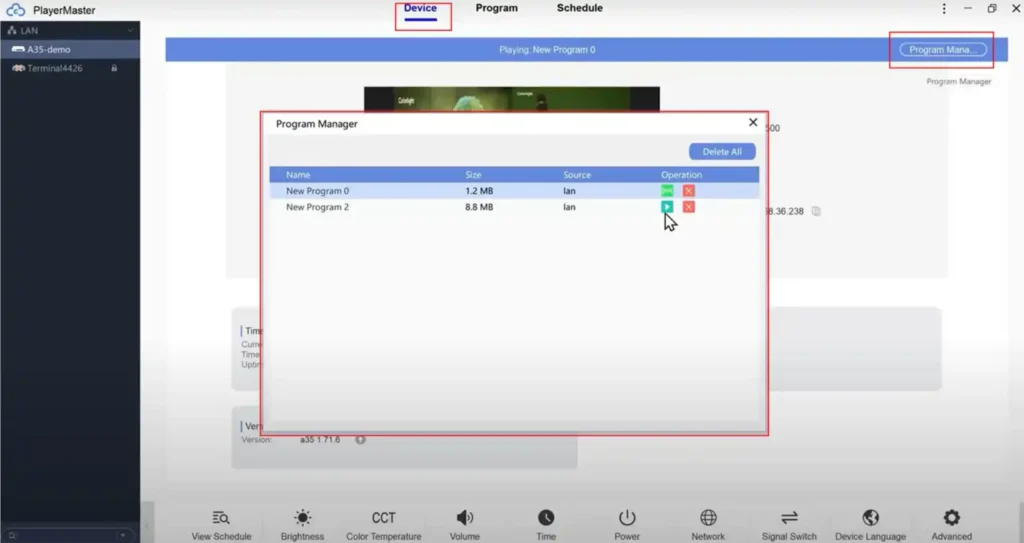
In the upper-right corner view the downloaded programs. Use the “Play” option on the left to switch between programs. To remove any local programs, simply click on “Delete“.
Conclusion
In this quick guide, we introduced you to the essential features of Colorlight Media Players, and we used PlayerMaster to demonstrate how to effectively set up and manager media players.
If you have any further questions when you are using the Colorlight media players, please feel free to contact us.